

Factory Reset Protection (FRP) is a security feature designed by Google to protect Android devices from unauthorized access. While FRP is useful for security, it often becomes a major problem for legitimate users and professional technicians when the original Google account credentials are forgotten or unavailable.
This is especially true for flagship gaming smartphones like the ZTE Nubia RedMagic 11 Pro, which runs on the latest Android 16 and Qualcomm hardware. Many users face Google lock issues after a reset, firmware update, or motherboard repair. In such cases, Remove FRP ZTE Nubia RedMagic 11 Pro becomes a critical solution.
This detailed guide explains everything you need to know about Remove FRP ZTE Nubia RedMagic 11 Pro, including features, supported models, installation steps, activation, usage, troubleshooting, pricing, and legal considerations. Whether you are an individual device owner or a professional mobile repair technician, this article is written to help you solve FRP issues safely and effectively.
What Is Remove FRP ZTE Nubia RedMagic 11 Pro and Why It Is Needed
Remove FRP ZTE Nubia RedMagic 11 Pro refers to the professional process or software method used to bypass or unlock the Google FRP lock on the RedMagic 11 Pro (Model NX809J).
FRP activates automatically when:
- A Google account is added to the phone
- The device is factory reset without removing the account
- Firmware is flashed or updated
- The motherboard or memory chip is replaced
After reset, the phone asks for the previously synced Google account. Without it, the device becomes unusable.
Why FRP Removal Is Needed
FRP removal is required in situations such as:
- Forgotten Google ID or password
- Second-hand device purchase
- Dead email or inaccessible recovery phone number
- Software corruption after flashing
- Repair shop testing after hardware replacement
In all these cases, ZTE Nubia RedMagic 11 Pro FRP Remove solutions help restore access legally for rightful owners.
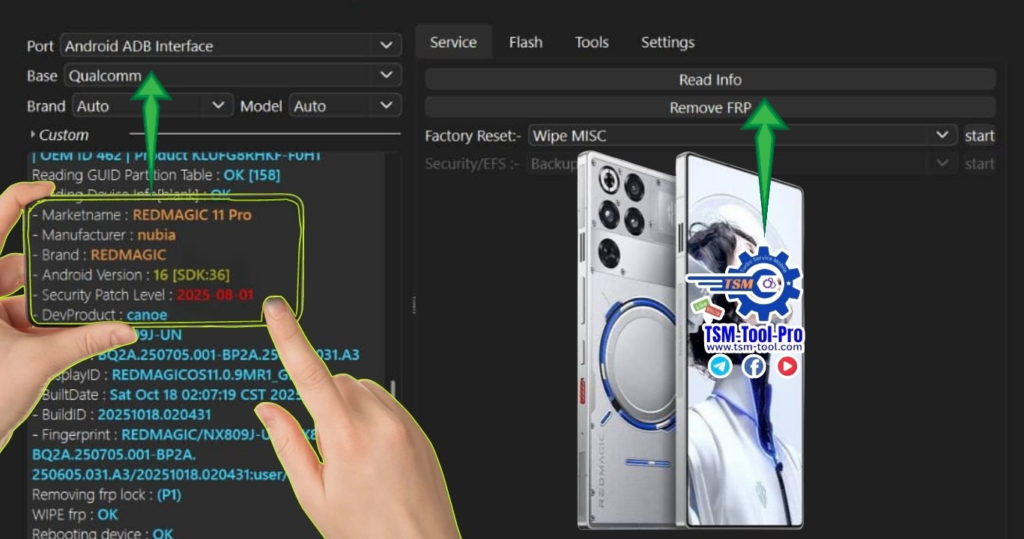
Key Features of Remove FRP ZTE Nubia RedMagic 11 Pro (Latest Version)
The latest Remove FRP ZTE Nubia RedMagic 11 Pro 2026 solution comes with advanced compatibility and fast execution.
Core Features
- Supports Android 16 FRP Unlock
- Qualcomm-based EDL mode operation
- Works on ZTE Nubia NX809J
- Extremely fast FRP removal (under 10 seconds in most cases)
- No data cable disconnection during process
- Safe and non-destructive method
- Compatible with latest security patch (2025-08-01)
- Designed for both users and technicians
Professional-Level Benefits
- Ideal for repair shops handling bulk devices
- Stable performance on Windows systems
- Registration-based licensed access
- Reduces manual FRP bypass errors
- Supports multiple models and brands
This makes it one of the best Remove FRP ZTE Nubia RedMagic 11 Pro tools available in 2026.
Supported Devices and Brands
Although this guide focuses on Remove FRP ZTE Nubia RedMagic 11 Pro, most professional tools also support multiple brands.
ZTE / Nubia Devices
- ZTE Nubia RedMagic 11 Pro
- Nubia gaming series
- ZTE Qualcomm-based smartphones
Other Supported Brands (Tool Dependent)
- Xiaomi
- Samsung
- Vivo
- Oppo
- Realme
- Huawei (selected models)
Always confirm model and chipset compatibility before starting FRP removal.
Download and Installation Process
To safely Remove FRP ZTE Nubia RedMagic 11 Pro, always download tools from trusted or official sources.
System Requirements
- Windows 10 or Windows 11 (64-bit)
- Minimum 8 GB RAM recommended
- Qualcomm USB drivers installed
- Stable USB cable
- Internet connection for activation
Step-by-Step Installation Guide
- Download the official FRP removal software package.
- Disable antivirus temporarily (some tools are falsely flagged).
- Extract the downloaded ZIP file.
- Run the installer as Administrator.
- Complete installation and reboot your PC.
- Install Qualcomm USB drivers if not already installed.
How to Register and Activate
Most professional mobile unlock programs require activation.
- Open the installed software.
- Click on “Register” or “Login”.
- Enter your username and license key.
- Connect to the internet.
- Wait for activation confirmation.
After activation, the software becomes fully functional for ZTE Nubia FRP Unlock Android 16.

How to Use Remove FRP ZTE Nubia RedMagic 11 Pro
This section explains usage for both normal users and technicians.
For Individual Device Owners
- Power off the RedMagic 11 Pro.
- Boot the device into EDL mode (test point or hardware method).
- Connect the phone to PC via USB.
- Open the FRP removal software.
- Select “ZTE Nubia RedMagic 11 Pro”.
- Click “Remove FRP”.
- Wait for the process to complete.
- Reboot the device and set up without Google lock.
For Professional Technicians / Repair Shops
Technicians can handle bulk devices efficiently.
- Use stable EDL connection methods
- Verify model NX809J before operation
- Maintain customer authorization records
- Combine FRP removal with firmware repair
- Offer fast turnaround services
This makes RedMagic 11 Pro EDL FRP Remove ideal for commercial use.
IMEI Repair and Other Services
Some advanced tools also offer:
- IMEI repair (region-dependent)
- Boot repair
- Firmware flashing
- Baseband restoration
- Network unlock features
Always follow local laws when using IMEI-related services.
Comparison with Other Tools
| Feature | Remove FRP ZTE Nubia RedMagic 11 Pro Tool | Generic FRP Tools |
|---|---|---|
| Android 16 Support | Yes | Limited |
| Qualcomm EDL Mode | Yes | Often No |
| Speed | Very Fast | Medium |
| Stability | High | Unstable |
| Professional Use | Yes | Not Recommended |
| NX809J Support | Full | Partial |
This comparison clearly shows why Best Remove FRP ZTE Nubia RedMagic 11 Pro 2026 solutions outperform generic tools.
Safety Tips and Legal Considerations
FRP removal must be done responsibly.
Safety Tips
- Backup device data if accessible
- Use original USB cables
- Avoid interrupted power supply
- Do not flash incorrect firmware
Legal Considerations
- Perform FRP removal only on legally owned devices
- Obtain customer consent in repair shops
- Do not bypass security on stolen devices
- Follow regional mobile repair regulations
Responsible usage protects both users and businesses.
Troubleshooting Common Errors
Device Not Detected
- Reinstall Qualcomm drivers
- Try another USB port
- Check EDL mode properly
FRP Removal Failed
- Verify Android version
- Confirm model NX809J
- Update software to latest version
Software Not Opening
- Run as Administrator
- Disable antivirus temporarily
- Install missing runtime libraries
Most issues can be resolved with correct setup.
Pricing and Subscription Plans
Pricing varies depending on provider and license type.
Common Plans
- Single-use license
- Monthly subscription
- Yearly technician plan
- Unlimited shop license
Professional repair shops benefit most from long-term subscriptions.
Frequently Asked Questions (FAQs)
Is Remove FRP ZTE Nubia RedMagic 11 Pro safe?
Yes, when used correctly on legally owned devices.
Does it support Android 16?
Yes, the latest versions fully support Android 16.
Can beginners use this tool?
Yes, the interface is user-friendly with guided steps.
Is internet required?
Yes, for registration and activation.
Does it erase data?
FRP removal itself does not erase additional data, but factory reset data is already removed.
Why Buy from GsmRadix
- 100% genuine and verified firmware
- Official download mirror of TSM PRO TOOL
- Instant auto-delivery 24/7
- Secure checkout with fast technical support