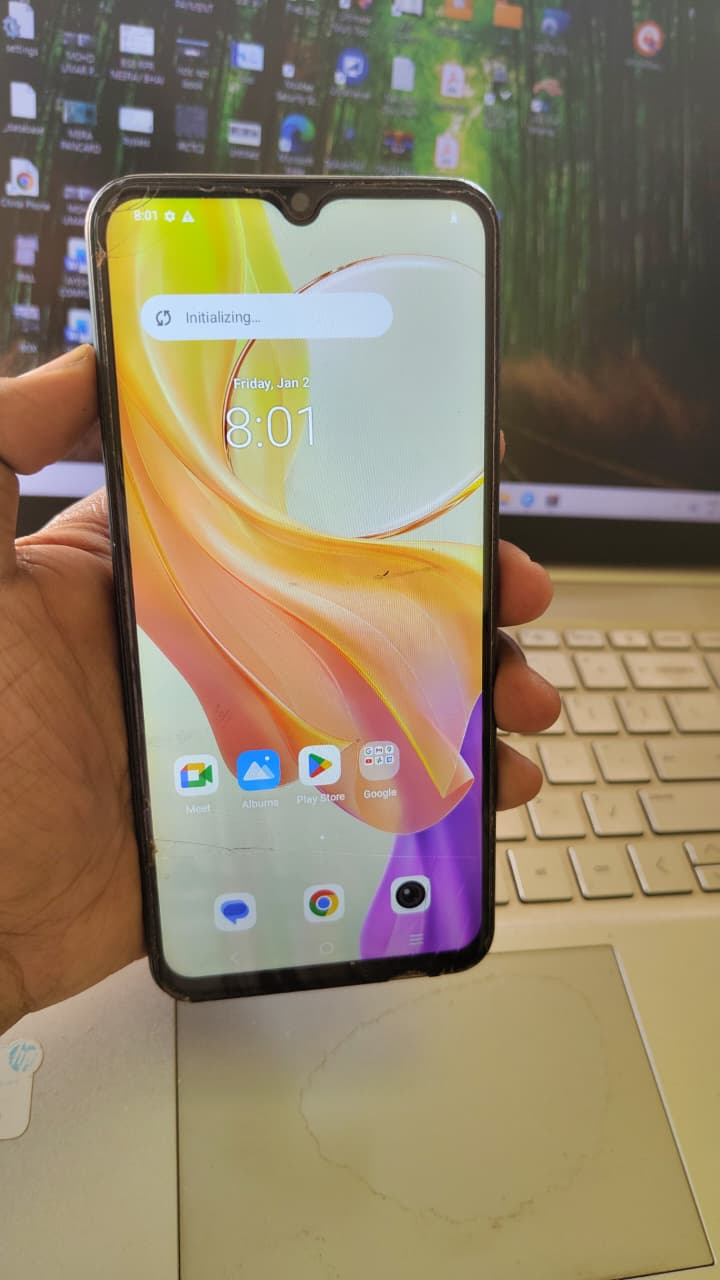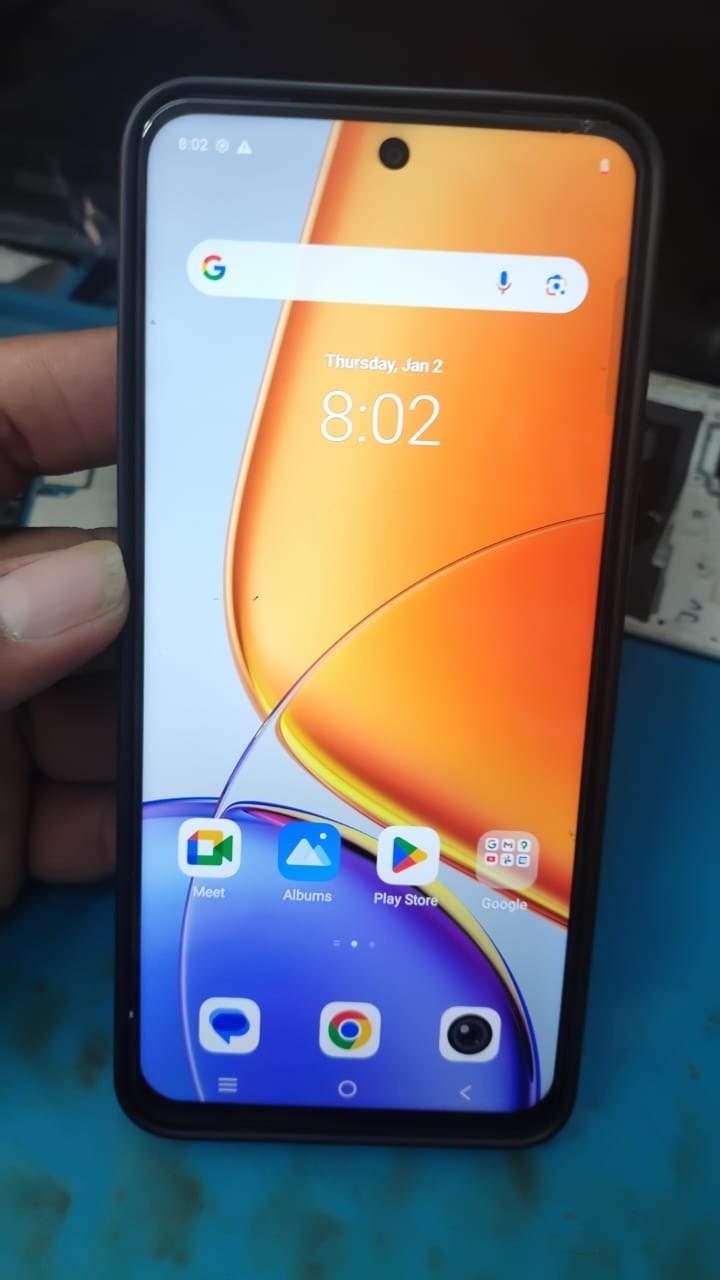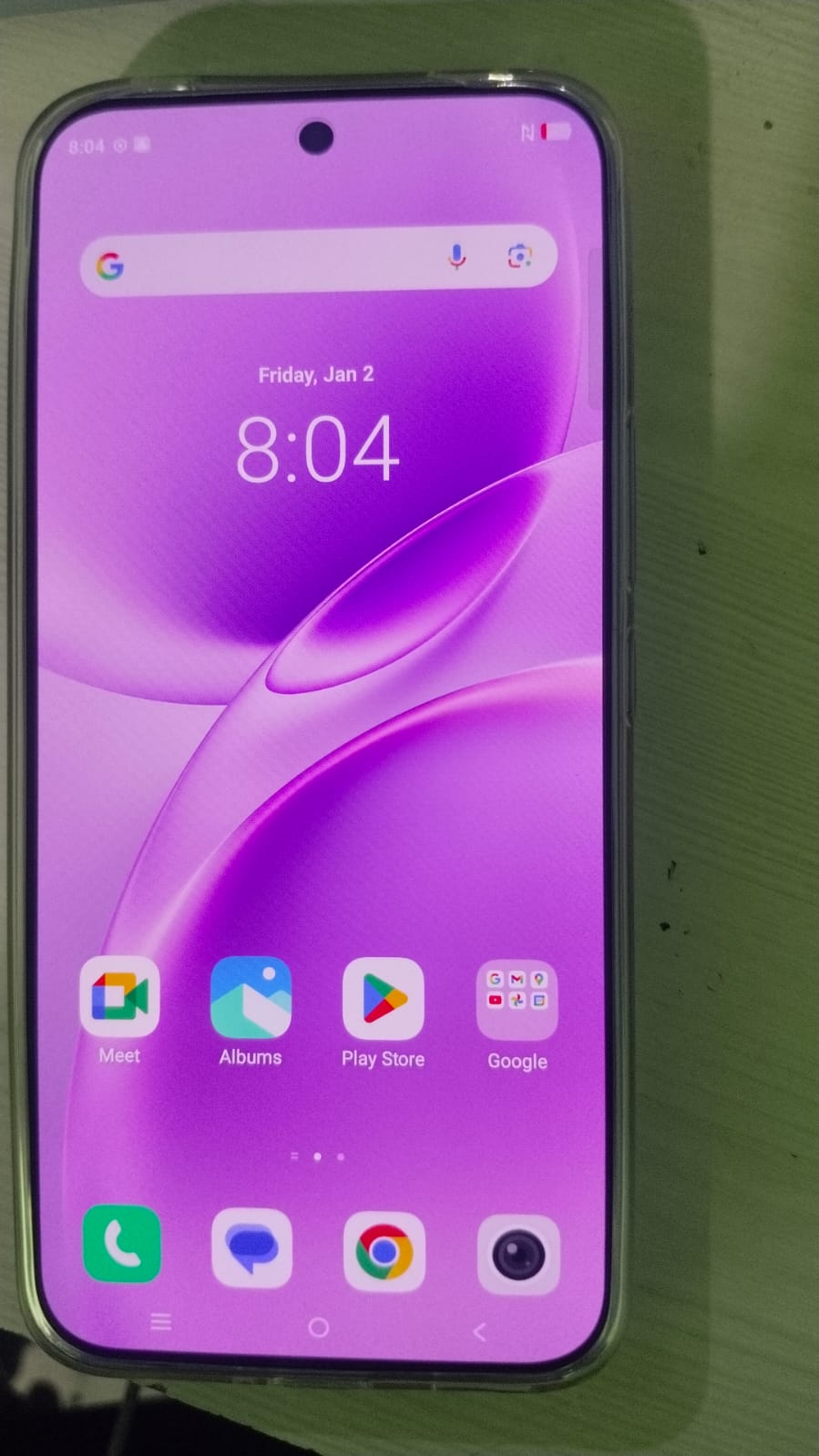


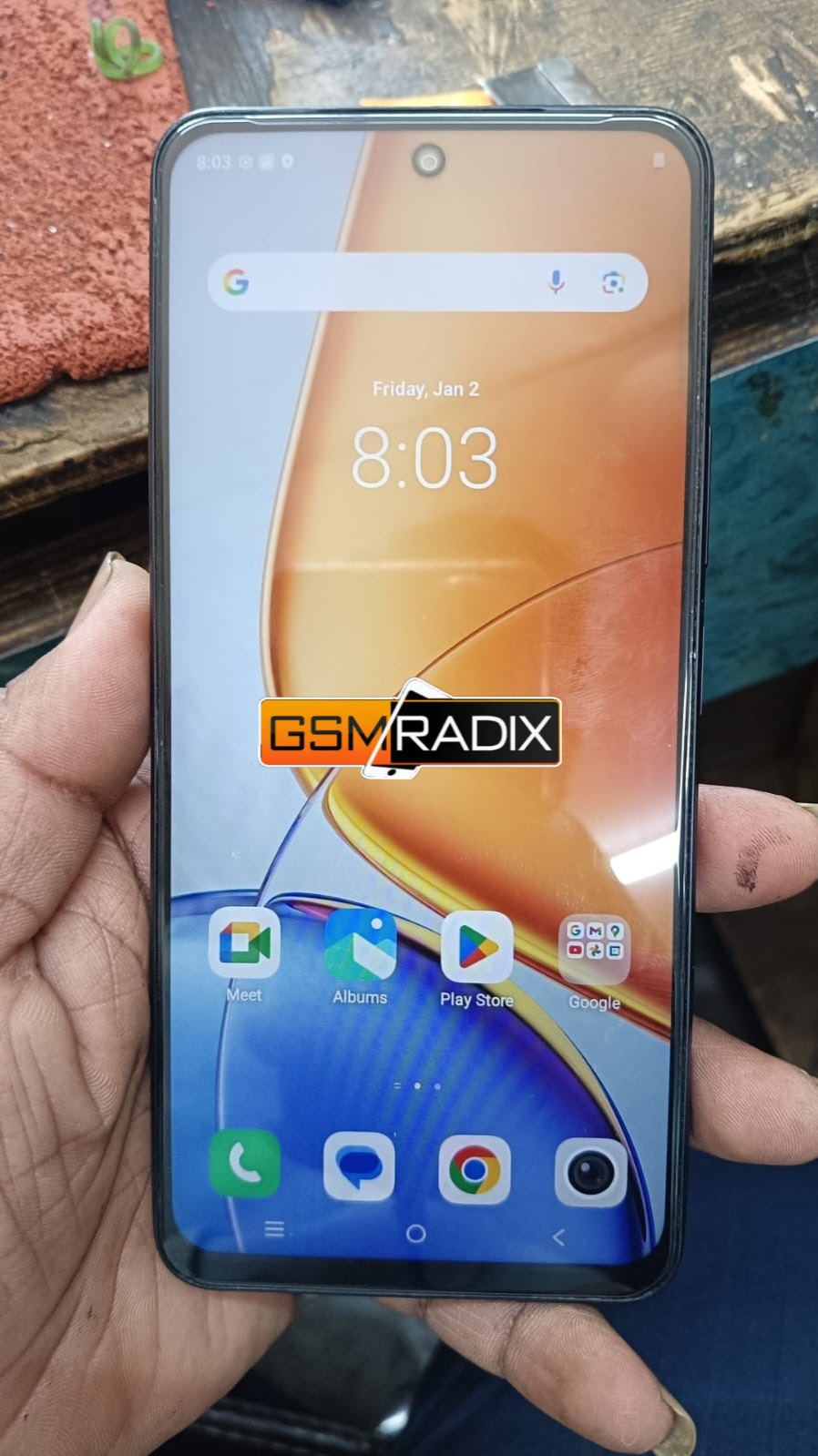
Vivo Y39 users often face Factory Reset Protection (FRP) lock issues after resetting their device without removing the previously synced Google account. This security feature protects Android devices from unauthorized access, but it can also create problems for legitimate owners, mobile repair technicians, and refurbishing businesses.
In this detailed guide, you will learn everything about Vivo Y39 FRP Unlock, including how to remove Google account verification, supported Android versions, installation steps, activation methods, troubleshooting tips, pricing, and advanced technician features.
Whether you are an individual user trying to regain access to your phone or a professional repair shop searching for a reliable unlocking solution, this article provides a complete beginner-friendly walkthrough.
What is Vivo Y39 FRP Unlock and Why Is It Needed?
Understanding FRP Protection
Factory Reset Protection (FRP) is a security mechanism introduced by Android to prevent unauthorized use of a device after a factory reset. Once a Google account is added to the device, Android automatically enables FRP security.
After resetting the device, the system asks for the previously synced Google account credentials before granting access.
This becomes a problem when:
- The owner forgets the Google account password
- A second-hand device is purchased with FRP enabled
- A technician receives a locked device from a customer
- Demo or display units require unlocking
- Android 15 security patches block traditional bypass methods
That is where Vivo Y39 FRP Unlock solutions become important.
Why Vivo Y39 FRP Unlock Is Popular in 2026
The latest Android security updates have made FRP bypassing more difficult than before. Traditional APK methods and browser exploits often fail on Android 15 devices.
Professional unlocking solutions now provide:
- Secure Boot FRP unlock
- One-click Google lock removal
- Fast USB communication
- Support for latest Vivo security patches
- Demo mode remove support
- Technician-level servicing tools
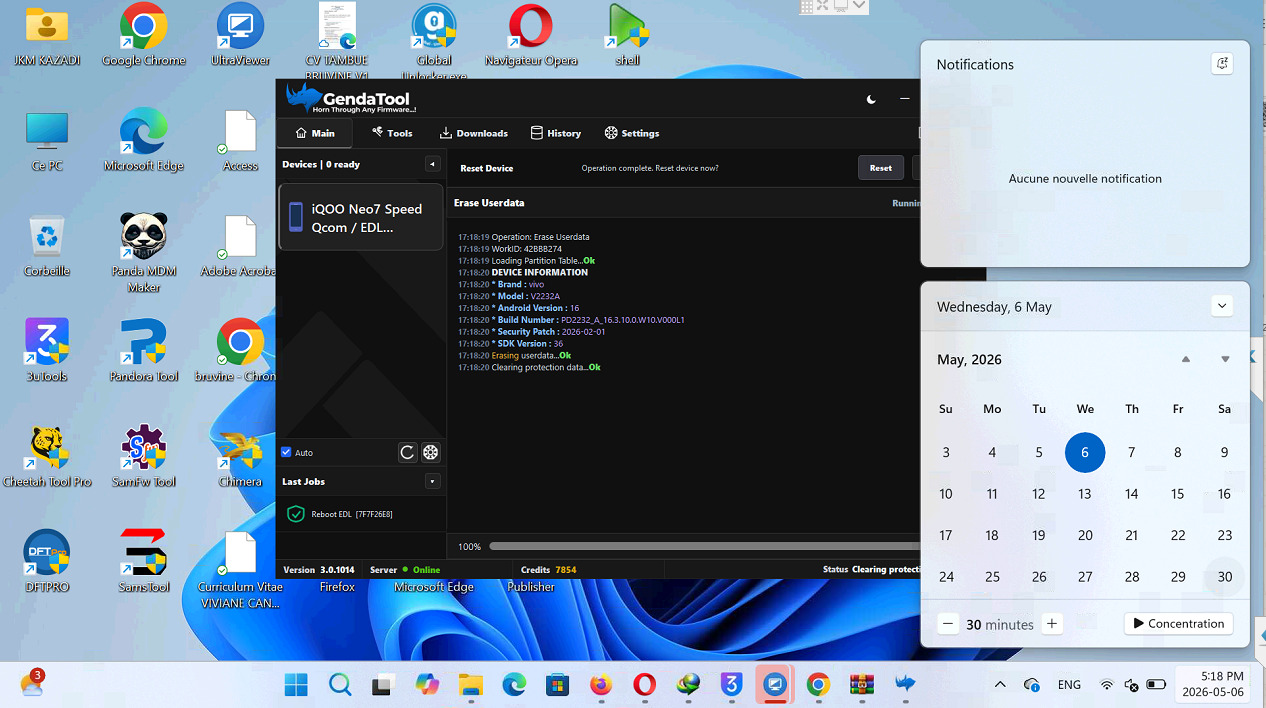
Because of this, Vivo Y39 FRP Unlock by GendaTool has become increasingly popular among technicians and service centers.
Key Features of Vivo Y39 FRP Unlock (Latest Version)
One Click FRP Unlock
The latest solution offers simple one-click functionality for removing Google account verification from Vivo Y39 devices.
Benefits:
- Beginner-friendly process
- No advanced flashing knowledge needed
- Fast unlocking time
- Reduced risk of boot errors
Android 15 Support
Many free FRP methods fail on Android 15 security updates. Professional tools now support:
- Latest firmware patches
- Updated Vivo security layers
- Secure boot authentication
- New bootloader communication protocols
This makes Vivo Y39 FRP Remove Android 15 much easier and safer.
Secure Boot FRP Unlock
Modern Vivo devices use secure boot verification systems that block unauthorized flashing attempts.
Advanced tools now support:
- Secure Boot Authentication
- Bootloader communication
- USB exploit handling
- Preloader access
This feature is extremely useful for professional repair shops.
Technician Mode Features
Vivo Y39 FRP Unlock for Technicians includes:
- Batch device processing
- Faster USB detection
- Driver auto-installation
- Log generation
- Advanced service functions
- Device information reading
- Demo mode remove
Additional Service Functions.
Many professional unlocking tools also provide:
| Feature | Availability |
|---|---|
| FRP Unlock | Yes |
| Network Unlock | Yes |
| IMEI Repair | Limited |
| Factory Reset | Yes |
| Demo Remove | Yes |
| Secure Boot Unlock | Yes |
| Device Info Read | Yes |
Supported Devices and Brands
Although this guide focuses on Vivo Y39 FRP Unlock, many professional tools support multiple brands.
Supported Vivo Devices
- Vivo Y39
- Vivo V50e
- Vivo Y400
- Vivo Y38
- Vivo Y58
- Vivo Y29
- Vivo V29
- Vivo X Series
- iQOO Models
Other Supported Brands
Many unlocking tools also support:
- Samsung
- Xiaomi
- Oppo
- Realme
- Tecno
- Infinix
- Motorola
Vivo Y39 FRP Unlock Tool Download
Why Download a Professional Tool?
Using random APK files from unknown websites can cause:
- Malware infections
- Data corruption
- Device brick issues
- Security risks
Professional solutions provide:
- Regular updates
- Secure activation
- Customer support
- Latest patch compatibility
Download and Installation Process
Step-by-Step Installation Guide
Step 1: Download the Setup File
Download the latest Vivo Y39 FRP Unlock setup package from the official support source.
Recommended package includes:
- Main software
- USB drivers
- Authentication files
- Activation utility
Step 2: Disable Antivirus Temporarily
Some antivirus programs may block mobile servicing tools because they access USB communication layers.
Before installation:
- Disable Windows Defender temporarily
- Disable third-party antivirus
- Run installer as Administrator
Step 3: Install USB Drivers
Install required drivers:
- Vivo USB Drivers
- MTK Drivers
- Qualcomm Drivers
- ADB Drivers
Without drivers, the device may not be detected properly.
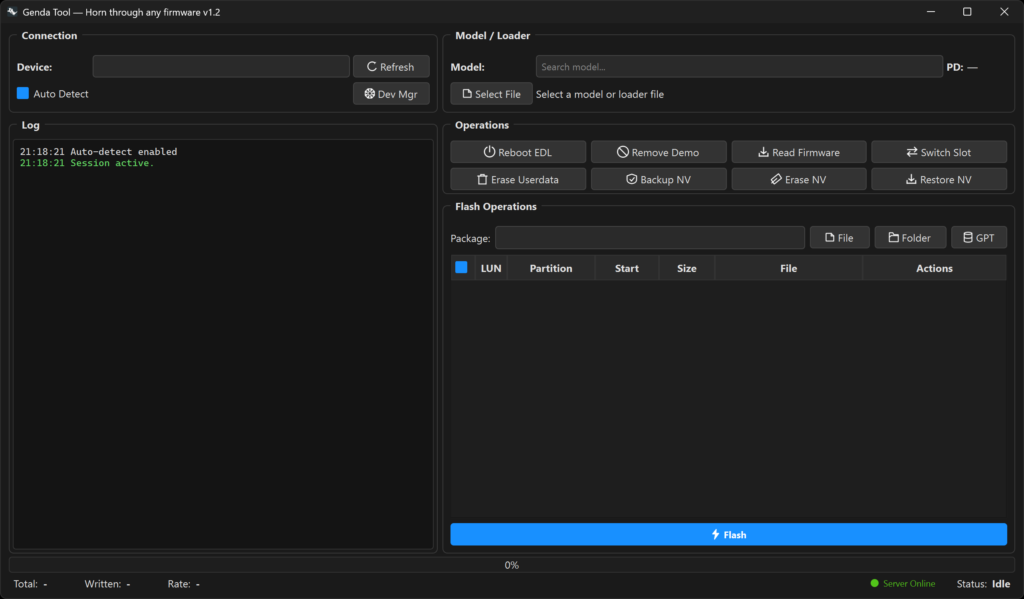
Step 4: Launch the Software
After installation:
- Open the tool
- Login or register
- Connect the device
- Select FRP unlock mode
How to Register and Activate
Registration Process
Most professional tools require activation.
Typical registration steps:
- Create an account
- Purchase a license
- Receive activation credentials
- Login inside the software
Activation Benefits
Registered users receive:
- Latest updates
- Server access
- Technical support
- Faster unlock methods
- Premium functions

How to Use Vivo Y39 FRP Unlock
Method for Device Owners
If you are the actual owner of the device:
Requirements:
- USB cable
- Windows PC
- Stable internet connection
- Battery above 50%
Vivo Y39 Google Lock Remove Process
Step-by-Step:
Step 1:
Power off the device.
Step 2:
Connect it to the PC using a USB cable.
Step 3:
Launch the unlocking software.
Step 4:
Select:
- Vivo Brand
- Vivo Y39 Model
- FRP Unlock Option
Step 5:
Click “Start Unlock.”
Step 6:
Wait for the process to complete.
Step 7:
Reboot the device.
The Google account verification screen should now be removed.
Vivo Y39 FRP Unlock for Technicians
Professional technicians usually need:
- Faster processing
- Multiple device support
- Latest security patch compatibility
- Advanced repair options
Recommended Technician Workflow
Device Inspection
Check:
- Model number
- Android version
- Security patch
- CPU type
Backup Important Data
Although FRP unlocking usually wipes data, always confirm with the customer before proceeding.
Use Original USB Cable
Low-quality cables can cause:
- Connection interruption
- Driver failures
- Unlocking errors
Network Unlock Features
Some advanced servicing tools provide:
- SIM unlock
- Carrier unlock
- Region unlock
This is useful for imported devices.
IMEI Repair and Other Services
Some tools also include:
- IMEI repair
- Baseband repair
- Boot repair
- Device formatting
- Firmware flashing
However, IMEI modification laws vary by country. Always follow local regulations.
Vivo Y39 One Click FRP Unlock vs Traditional Methods
| Feature | One Click Tool | Traditional APK |
|---|---|---|
| Android 15 Support | Yes | Limited |
| Secure Boot Support | Yes | No |
| Speed | Fast | Slow |
| Success Rate | High | Medium |
| Risk Level | Low | Higher |
| Technician Friendly | Yes | No |
Comparison with Other FRP Tools
| Tool | Android 15 | Vivo Support | Secure Boot | Ease of Use |
|---|---|---|---|---|
| GendaTool | Yes | Excellent | Yes | Very Easy |
| Generic APK Methods | Limited | Medium | No | Difficult |
| Basic ADB Tools | Partial | Medium | No | Moderate |
Safety Tips and Legal Considerations
Important Safety Tips
Before performing Vivo Y39 FRP Unlock:
- Use trusted software only
- Avoid cracked versions
- Backup important data
- Charge the battery fully
- Install official drivers