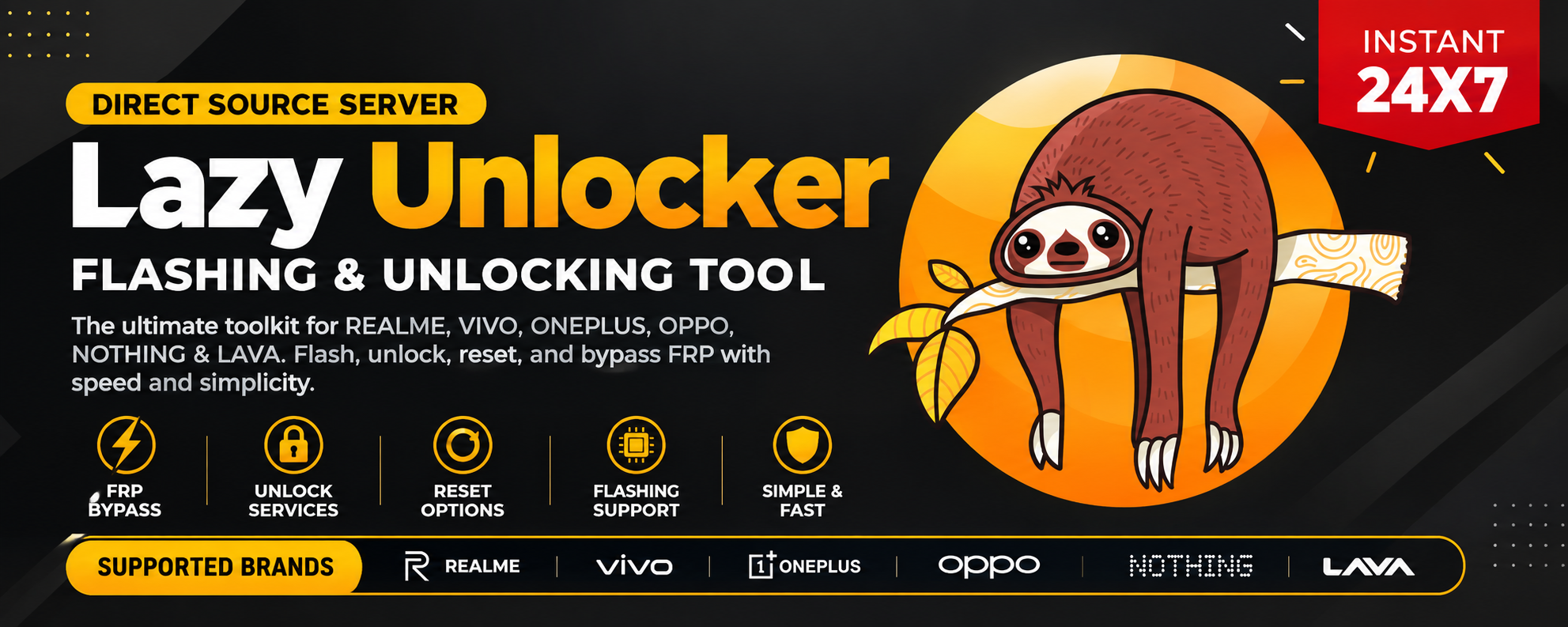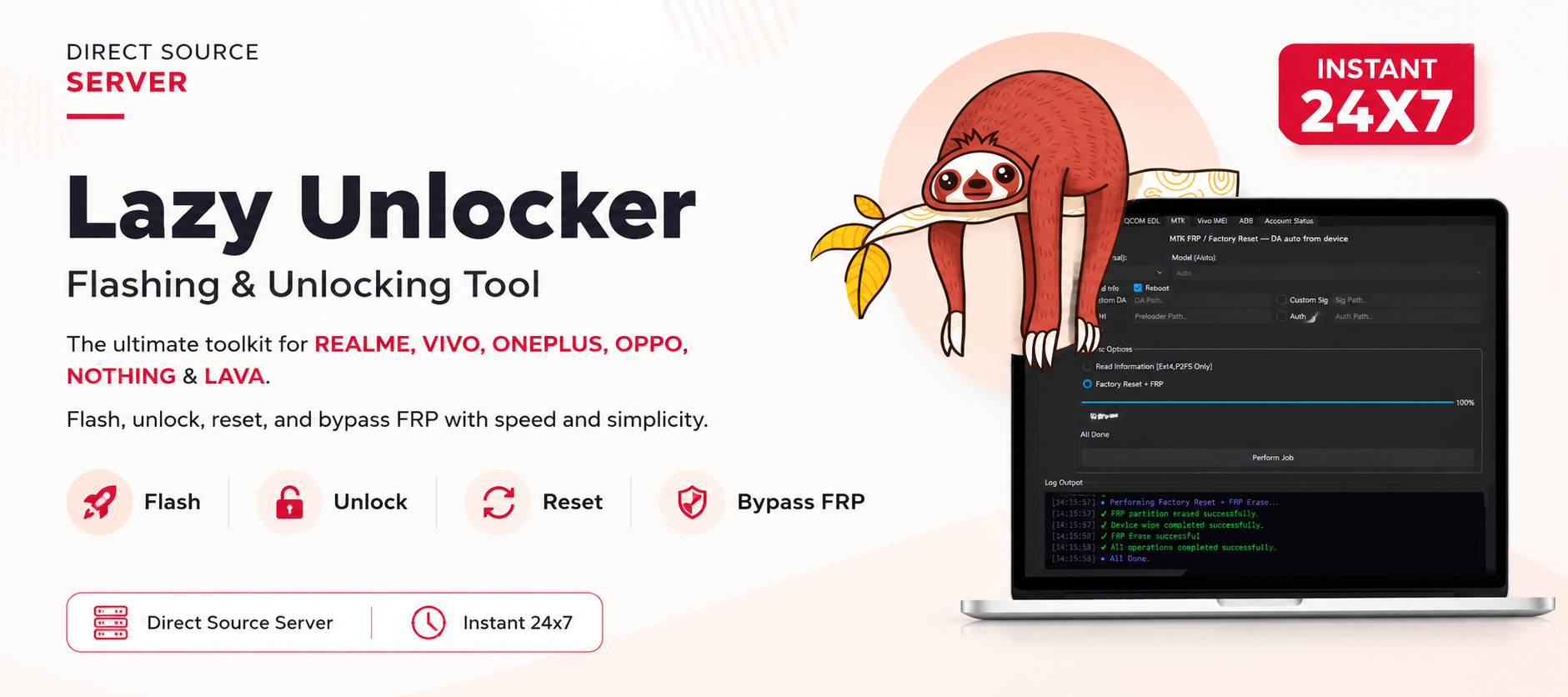


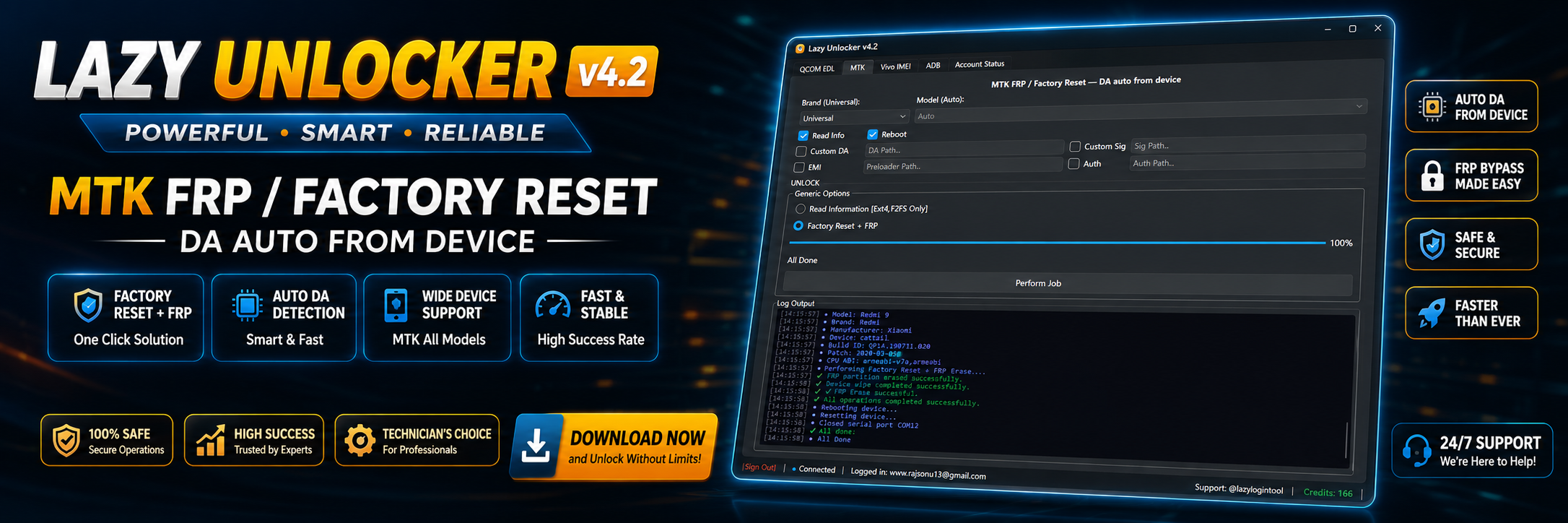
Modern Vivo smartphones feature advanced security systems that protect user data and device integrity. While these security measures are beneficial, they can also create challenges when users forget their Google account credentials, purchase second-hand devices, or need to repair software-related issues.
This is where Lazy Unlocker Vivo becomes one of the most useful solutions for both individual users and professional mobile repair technicians. Designed to simplify unlocking and servicing Vivo smartphones, the software provides multiple repair functions through a single interface.
Whether you want to perform FRP removal, activate the software, repair IMEI (where legally permitted), or simply manage supported Vivo devices, this guide explains everything you need to know.

What is Lazy Unlocker Vivo and Why Is It Needed?
Lazy Unlocker Vivo is a professional mobile servicing software designed specifically for Vivo smartphones. It enables users and repair technicians to perform software-related operations that would otherwise require advanced technical knowledge.
The software is widely used in repair shops because it combines multiple repair functions into one platform, reducing repair time and improving workflow.
Why Users Need Lazy Unlocker Vivo
Many Vivo users experience situations like:
- Forgotten Google account after factory reset
- Device stuck on FRP verification
- Software corruption
- Screen lock issues
- Boot problems
- Firmware servicing
- Device maintenance
Instead of using multiple tools, Lazy Unlocker Vivo offers a centralised solution.
Key Features of Lazy Unlocker Vivo (Latest Version)
The latest version introduces better compatibility, improved performance, and support for newer Vivo devices.
FRP Unlock
The software can assist technicians in removing Factory Reset Protection from supported devices after proper ownership verification.
Benefits
- Fast processing
- Safe procedures
- Regular updates
- Wide model support
Network Service Functions
Supported operations may include:
- Network-related servicing
- Device maintenance
- Software restoration
- Security repairs
Availability depends on the device model.
Device Information
Read important information such as:
- Device Model
- Android Version
- Build Number
- Security Patch
- Serial Information
Automatic Driver Detection
The software automatically recognises supported devices after proper driver installation.
Frequent Updates
Developers continuously release updates to support:
- New Vivo models
- Android security patches
- Bug fixes
- Performance improvements
Professional User Interface
The dashboard is designed for:
- Beginners
- Repair shops
- Advanced technicians
Navigation is clean and easy.
Supported Devices and Brands
Although the primary focus is Vivo, the software may also support selected devices from other manufacturers depending on the current version.
Popular Vivo Series
- Vivo V Series
- Vivo Y Series
- Vivo X Series
- Vivo S Series
- Vivo T Series
- Vivo iQOO Series
Support varies by model and software release.
Lazy Unlocker Download
Before downloading, ensure your computer meets the recommended requirements.
Minimum System Requirements
| Component | Requirement |
|---|---|
| OS | Windows 10 / Windows 11 |
| RAM | 4 GB Minimum |
| Recommended RAM | 8 GB |
| Processor | Intel Core i3 or Higher |
| Storage | 2 GB Free Space |
| Internet | Required for Activation |

Step-by-Step Installation Guide
Installing Lazy Unlocker Vivo is straightforward.
Step 1
Download the latest version from an authorised source.
Step 2
Extract the ZIP package.
Step 3
Disable antivirus temporarily if required by the installer (only if you trust the download source).
Step 4
Run the installer as Administrator.
Step 5
Install required USB drivers.
Step 6
Restart the computer.
Step 7
Launch the software.
How to Register and Activate
To use premium features, you’ll need Lazy Unlocker Activation.
Registration Steps
- Create your account.
- Sign in.
- Purchase a licence.
- Enter the activation code.
- Restart the software.
Once activated, premium functions become available.
How to Use Lazy Unlocker Vivo
Both beginners and professionals can quickly learn the software.
FRP Unlock
Before performing FRP removal:
- Verify device ownership.
- Back up important data if possible.
- Install the correct drivers.
- Use a reliable USB cable.
General workflow:
- Connect the supported Vivo device.
- Launch the software.
- Select the appropriate service function.
- Follow the on-screen instructions.
- Wait for the process to complete.
Only perform FRP removal on devices you own or are authorised to service.
Network Unlock
Where supported, the software provides guided workflows for network-related servicing. Compatibility varies by device and firmware version.
IMEI Repair and Other Services
Some versions may include maintenance and repair functions intended for authorised servicing. Always comply with local laws and manufacturer policies before using these features.
Who Should Use Lazy Unlocker Vivo?
Individual Users
Ideal for:
- Device maintenance
- Recovering access to owned devices
- Software servicing
- Learning repair techniques
Mobile Repair Shops
Perfect for:
- Daily servicing
- Customer repairs
- Faster turnaround
- Managing multiple Vivo models
Advanced Technicians
Useful for:
- Professional servicing
- Software diagnostics
- Firmware management
- Workshop productivity
Comparison with Other Popular Tools
| Feature | Lazy Unlocker Vivo | Generic FRP Tools |
|---|---|---|
| Vivo Support | Excellent | Limited |
| Regular Updates | Yes | Varies |
| Easy Interface | Yes | Often Complex |
| Driver Support | Built-in Guidance | Manual Setup |
| Professional Use | Yes | Depends on Tool |
| Activation System | Yes | Varies |
Advantages of Lazy Unlocker Tool
Why many professionals prefer the Lazy Unlocker Tool:
- Beginner-friendly interface
- Regular software updates
- Fast device detection
- Supports many Vivo models
- Professional workflow
- Active development
- Reduced servicing time
- Suitable for repair businesses
Safety Tips
Always use the software responsibly.
Recommended Practices
- Download only from trusted sources.
- Keep Windows updated.
- Install official USB drivers.
- Back up important data before servicing.
- Verify customer ownership before performing account-related services.
- Keep your licence secure.
- Avoid modified or cracked versions.
Legal Considerations
Using mobile servicing software carries responsibilities.
Always:
- Work only on devices you own or are authorised to repair.
- Follow local laws and regulations.
- Respect user privacy.
- Obtain customer consent before servicing.
- Keep records of repair jobs when operating a repair business.
Troubleshooting Common Errors
Device Not Detected
Possible causes:
- Missing USB drivers
- Faulty cable
- Unsupported firmware
- Incorrect USB mode
Solution:
- Reinstall drivers
- Try another USB port
- Use the original cable
- Restart both PC and phone
Activation Failed
Possible reasons:
- Internet connection issue
- Incorrect account
- Expired licence
- Server maintenance
Solution:
- Verify your login details.
- Check your internet connection.
- Ensure your subscription is active.
- Try again later if the activation server is under maintenance.
Driver Installation Problems
Solutions:
- Disable driver signature enforcement if necessary.
- Install the latest drivers.
- Restart Windows.
- Reconnect the device.
Software Crashes
Try:
- Running as Administrator
- Updating Windows
- Installing Microsoft Visual C++ Redistributables
- Reinstalling the latest version
Pricing and Subscription Plans
Licensing options vary by reseller and region.
Common subscription durations include:
| Plan | Suitable For |
|---|---|
| Monthly | Occasional users |
| Quarterly | Small repair shops |
| Semi-Annual | Growing businesses |
| Annual | Professional technicians |
Choose the plan that matches your repair volume and business requirements
Best Practices for Professional Repair Shops
To maximise efficiency:
- Keep Windows dedicated for repair work.
- Update the software regularly.
- Organise USB drivers.
- Label frequently used cables.
- Maintain customer repair records.
- Train technicians on supported workflows.
- Use only genuine activation licences.
Frequently Asked Questions (FAQs)
Is Lazy Unlocker Vivo free?
The software generally requires a paid activation to access premium functions.
Does it support all Vivo phones?
Support depends on the software version, Android version, and device model.
Is internet required?
Yes, internet access is typically required for registration, activation, updates, and some online functions.
Can beginners use it?
Yes. The interface is designed to be user-friendly while still offering advanced features for professionals.
Is it safe?
When downloaded from trusted sources and used responsibly on authorised devices, it can be a useful servicing tool. Always verify ownership before performing account-related operations.
How often is the software updated?
Updates are released periodically to improve compatibility, fix bugs, and add support for newer devices.
Final Thought
Lazy Unlocker Vivo has become a valuable software solution for users who need reliable Vivo servicing and for professional technicians managing multiple repairs every day. With support for a wide range of Vivo models, a straightforward interface, regular updates, and professional features, it can help streamline common software maintenance tasks.
Whether you are a beginner learning mobile servicing or an experienced repair professional, using a genuine licence and keeping the software up to date will provide the best experience. Always operate within applicable laws, respect device ownership, and follow safe servicing practices.